Contact Us

Why is monitoring so important?

Because viability is so important to you. Read our blog on factors that can effect your cold chain.

Data Station Directions & Validation

Cryoport Data Station

The Cryoport Data Station allows you to download temperature and condition information about the shipment that is being recorded by the data logger.

It works by:

  • Setting the data logger to record the time when the biomaterials are being placed in the shipper

  • Uploading software to your computer

  • Connecting the data logger to your computer

  • Choosing how you would like your data displayed

The Cryoport Data Station is ideal for shipments where temperature and condition need to be confirmed before receiving or using biomaterials, to confirm chain-of-condition and to establish multiple data points in the shipment.

The CryoPort Data Station is standard on every shipment along with the Data Logger and a report will be generated at the termination of the shipment. Every report is kept in our CryoPortal along with the data from your shipment.

To start simply download the Data Station to your computer:

Download Data Station Software

For directions including images download a PDF by clicking here or see below:

Download Directions

Click here for an FAQ downloadable sheet.

Data Station FAQs


CryoPort Data Station Directions

  1. Start the Data Station Recording

  2. Load biomaterials (see loading directions for details)

  3. Press the Data Logger button for 5 seconds 

  4. This means that the biomaterials were loaded and puts an indicator line on the recording

  5. Upload Software to Your Computer

  6. The Data Station requires software to read the Data Logger information and translate it into a graphical format. It is available for PC computer only.

  7. The system requirements for the Data Station are:

  8. Windows Operating System (XP, VISTA, WIN7)

  9. The data station works with both 32 and 64 bit operating systems.

  10. Java Runtime Environment 1.6 or higher

  11. USB 2.0 A-male to Mini-B cable to connect the data logger to the host computer

  12.  Software Installation Instructions

  13. Click on the Link to Install the Data Station software

  14. Launch the Installer by double clicking on the DataStationInstaller.exe

  15. If your system is missing the Java Runtime Environment (JRE) or Microsoft Visual C++ 2010 Redistributable Package, you will be prompted to download and install these components. After you have done so, you click next to move to the next step.

  16. Click 'Next' to run the Setup Wizard

  17. Read and approve the End User License Agreement

  18. Select where to install the Data Station

  19. Click 'Install'

  20. Windows may prompt for permissions to install the software. Click yes to install

  21. Data Station Information Download Instructions

  22. Start by opening the Data Station program on your computer. When you open the CryoPort Data Station you will see this screen.

  23. At this point you can plug in the USB Data Logger that came in your CryoPort Shipment. You will need a Mini USB cable to connect the data logger to your computer

  24. Once you plug in the data logger, the Data Station will detect the device and start to load the data.

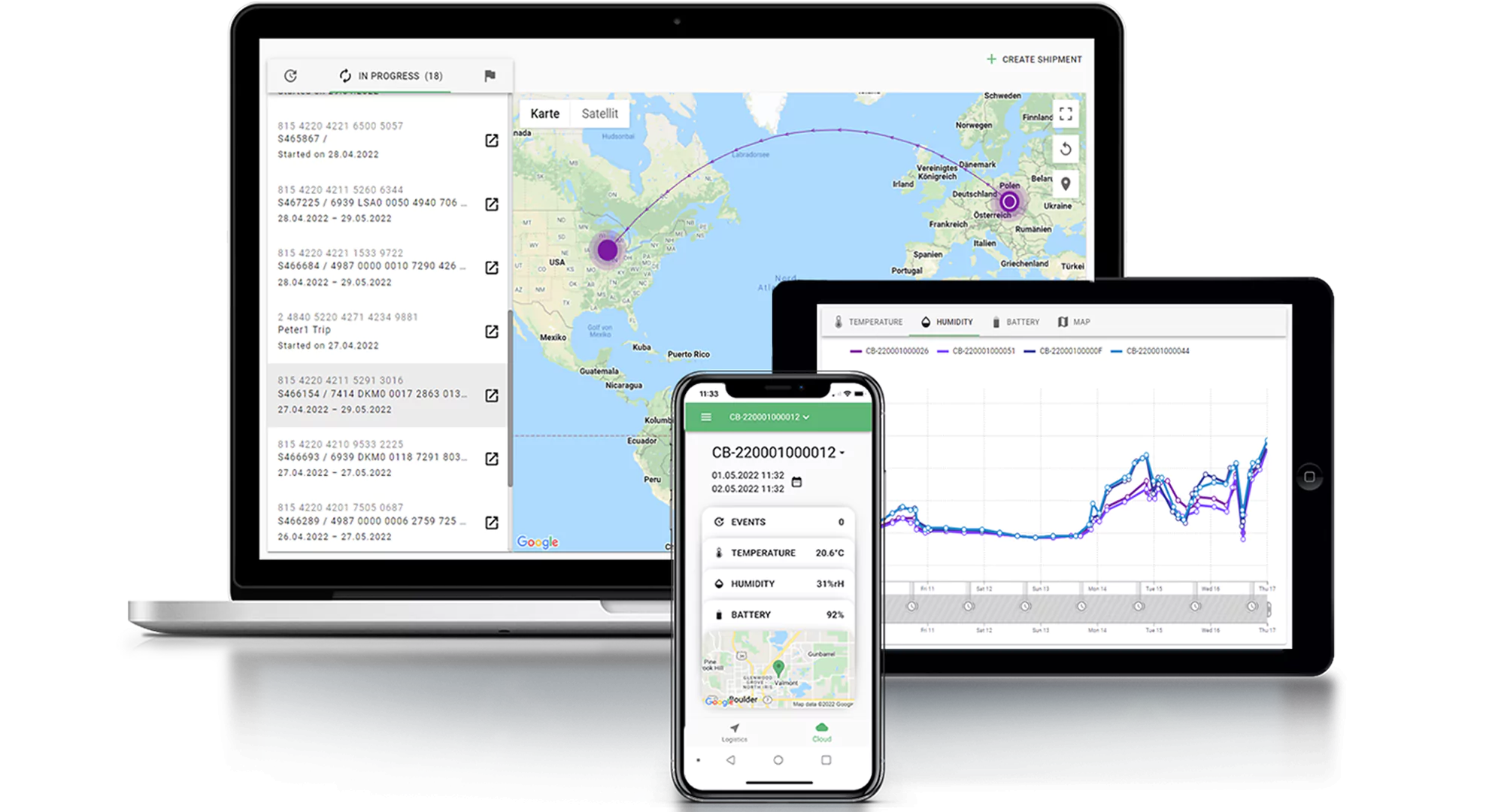
  25. Once the data is loaded, a chart will be displayed showing the temperature during the duration of the shipment.

  26. When the samples were loaded into the Shipper, the user should have pressed the data logger button for 5 seconds, indicating to you that the samples were loaded. This is shown as a green vertical line when the button was pressed. If the button was pressed multiple times for any reason, each instance will be shown as a green line on the graph.

  27. If the user forgot to press the button, this will be noted on the graph. You can find the approximate time the samples were loaded by referring to the tracking information to determine when the shipment was picked up by the shipping courier. 

  28. If your shipment contains multiple data loggers, you can simultaneously connect each one to your computer. Each time a new data logger is connected, it will show the temperature chart for that data logger.

  29. You can switch between data loggers using the Data Loggers Menu, and then select the data logger you want to view.

  30. To Save the Information:

  31. Go to the File menu. You will see 3 options:

  32. Save Graph: This will save a PDF file containing just the graph.

  33. Save Graph & Data: This will save a PDF file containing the graph and a table of all the underlying temperature data.

  34. Save Data: This will save a table of the underlying temperature data in a Comma Separated Value (CSV) file format. This can be opened using Microsoft Excel.


.